Location Create/Details
Parks & Rec > Location > Create (or Search > Edit)
 Setup
Setup
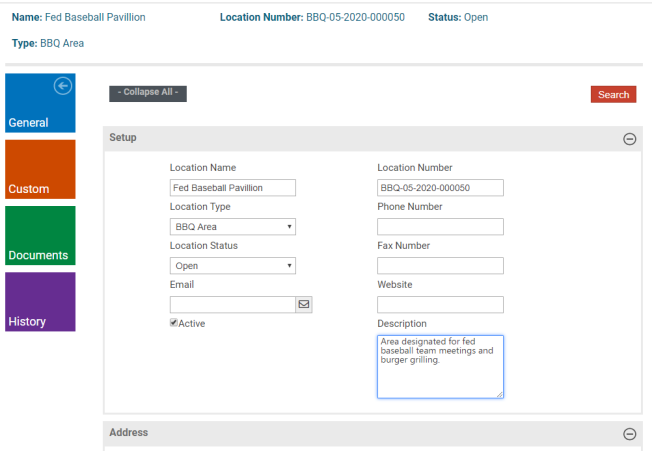
Setup fields provide the location profile: name, type, status, contact information, and description:
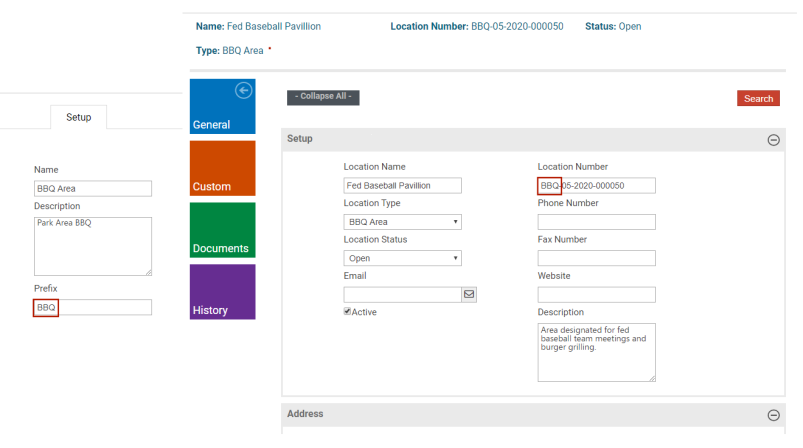
The program automatically assigns a location number to a location record. If you have defined a prefix for the location type associated with a location, the location number includes that prefix:
If you clear the Active check box for a location, it remains available to existing activity records, but you may not assign the location to new activities or classes.
When you attempt to delete a location that is being used for a class or rental, the program displays an error message and prevents the delete.
Address
The Address section provides essential address components for the location. Use the Quick Search and Add feature to complete the details for existing addresses:
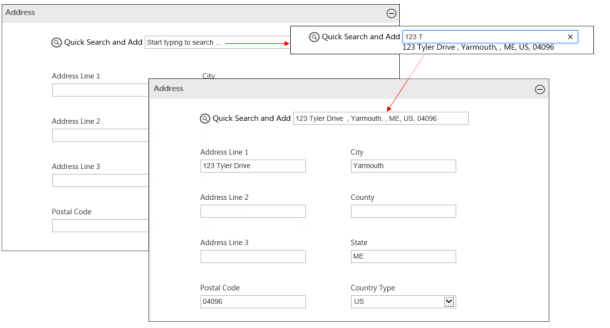
For example, when you type 123 T in the Quick Search and Add field, the program provides available options matching the data. Select the correct option, and the program completes the address fields.
Contacts
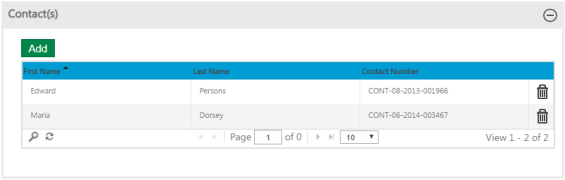
The Contacts section provides the name of the individual or individuals responsible for the location:
Notes
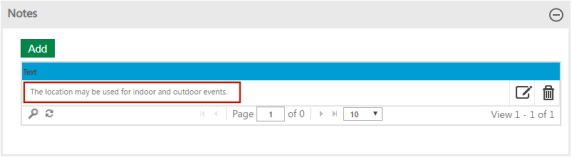
Notes provides additional information for the location. Click the Add button or Edit icon to create or maintain notes. When you save note text, it displays in the Notes section:
Hours
The Hours table defines the daily schedule for a location. The default value for each day is 12:00 AM to 12:00 AM. To define times, select the Active check box for the day, then the applicable times from the Start Time and End Time lists:
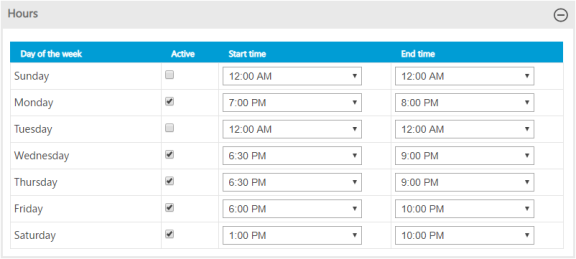
When you select a Start Time, the default entry for the End Time field is one hour later than the start time, but you may edit it.
Note: The available time intervals--five, fifteen, thirty, or sixty minutes--are defined using the Time Picker Interval field in System Settings.
If you select a start time, you also must select an end time.
Activities
Use the Activities section to associate activities with the location:
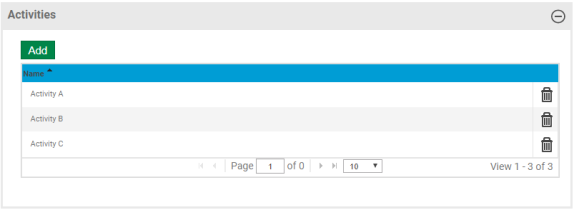
To associate one or more activities with the location, click the Add button. In the Add dialog that opens, select the activity or activities and click the Add Selected button:
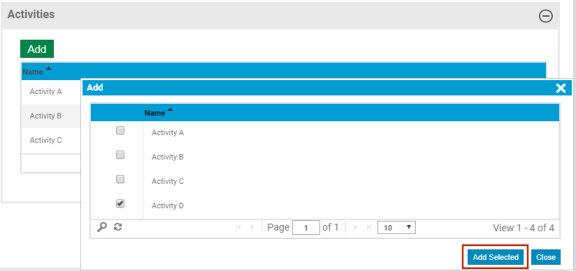
Set up activities at Administration > Parks & Rec. Setup > Activities.